
How to Automate your Excel Reporting w/Snowpark 🦾
It's easier than you think

You can’t kill Excel 📈
Despite countless self-serve innovations in the business intelligence field, one thing remains constant: the weekly Excel workbook export and summary for your respective business. For some stakeholders, nothing beats a curated report dropping in their inbox at 1pm each Wednesday, in their favourite and most familiar tool, Microsoft Excel.
The dreaded manual process
For most analytics teams this means they’ll follow some type of manual process:
Create dozens of sql queries to get the data they need.
Run these queries manually and manually export this data as CSV’s from their data-warehouse, one by one. The analyst often has to modify the sql query with a “date” parameter in their where conditions for each run they do
Copy and paste the relevant data into a “master” excel workbook. This excel workbook often has very specific formatting and cells the data needs to be loaded into
Make further updates in the Excel workbook to use the new data they inputted (think extending formula ranges, adding new dates, handling unexpected data)
Create another workbook with a finalized report thats ready for stakeholders
Review the report and add analyst commentary (“unusual behaviour WOW”, “uptick in sales over the long weekend”)
Create an email to the stakeholders with the commentary and finalized report attached
Why your team hates manual reports
🕒 Its a huge waste of time
❌ Human error is inevitable
🥱 Repetitive processes are boring
⚙️ Its impossible to version control and update
🤦♂️ Only one person knows how to do it
Let’s automate this
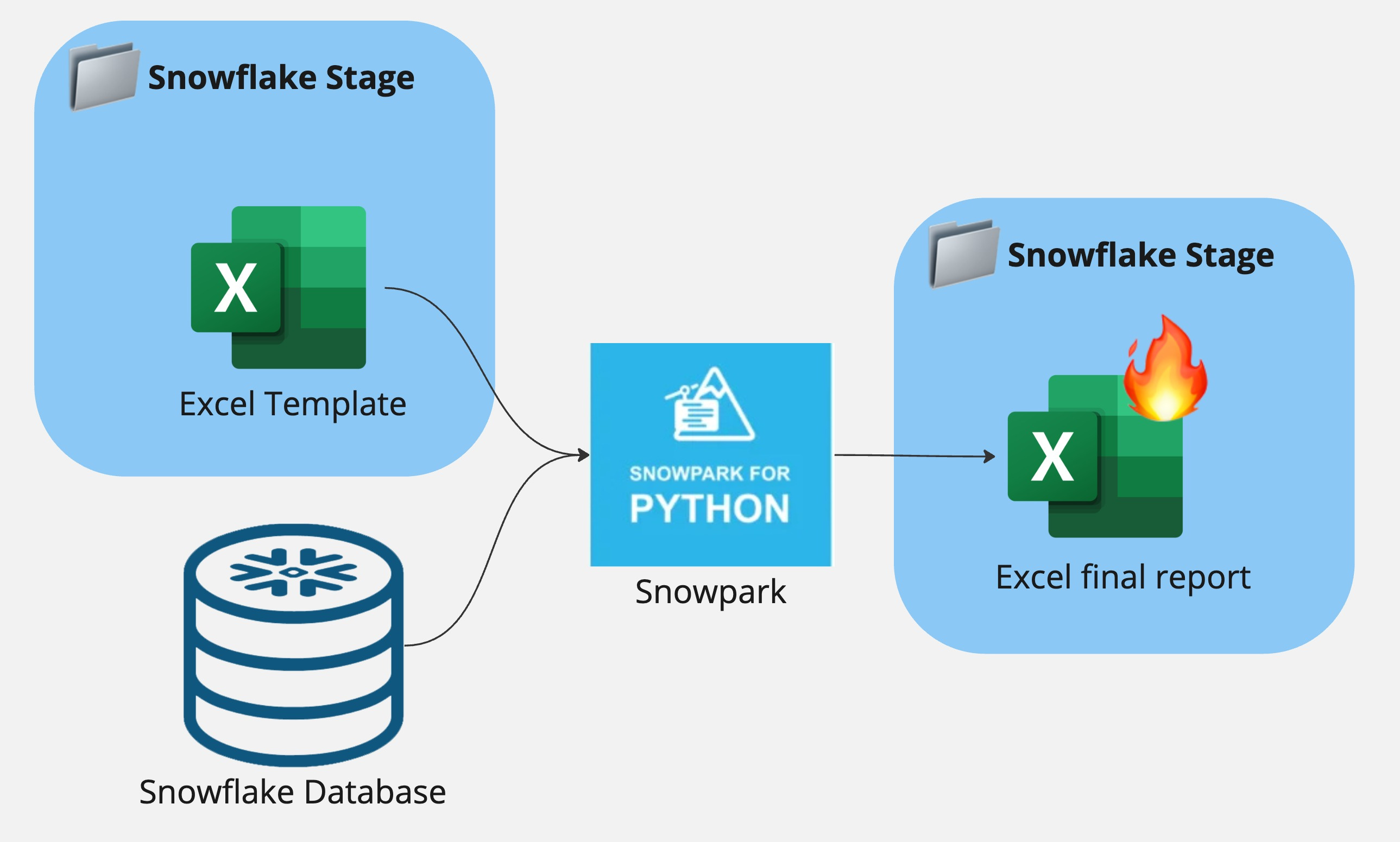
In this example we’re going to automate this process in Snowflake using Snowpark. Snowpark is a developer framework for running Python directly in snowflake, where our data is.
Diagram
Our Python code is going to do the following:
Query the snowflake database to extract the data we need
Open an Excel template with Openpyxl (a python package to edit Excel files)
Write the queried data from the snowflake database in specific cell(s) in the Excel file
Save the final Excel report and make it available for download
Setting up your Template
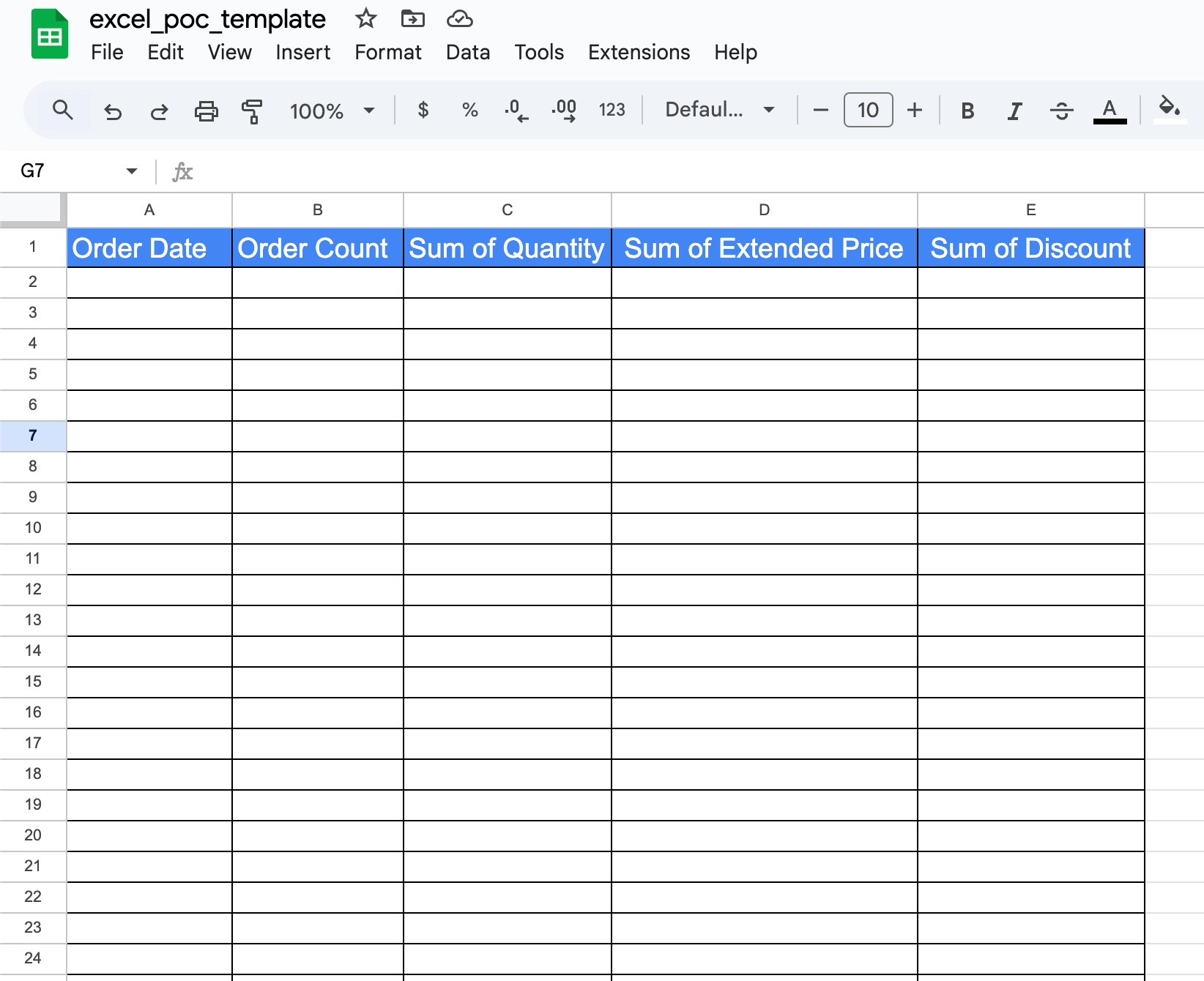
Using a sample snowflake dataset, we’ve created a hypothetical report that an analyst may need to complete on a weekly basis. Below is a template excel workbook (with no data filled in). The template workbook has formatting, data types for the columns and conditional colour formatting for some of the columns.
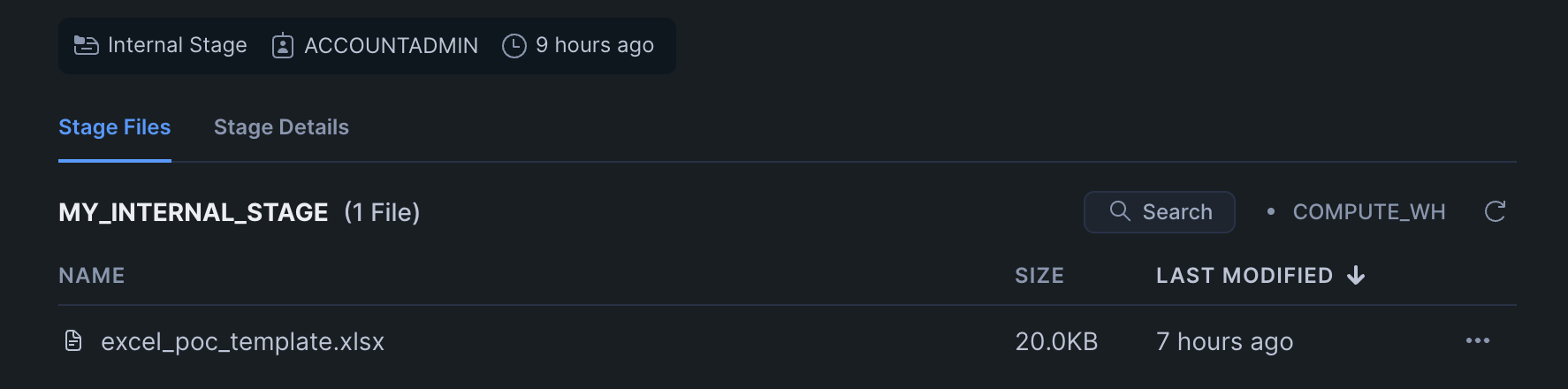
We’ll need to upload this to a snowflake stage for it to be accessible by our snowpark code. You can do this upload easily through the snowflake UI.
Code
1. Query the snowflake database to extract the data we need
Using the sample snowflake dataset, I’ve prepared a dummy SQL query to pull the necessary data to fill the workbook dummy. We take this SQL query and store it as a pandas dataframe.
    query = """
        select
            TO_CHAR(orders.o_orderdate, 'YYYY-MM') as order_yyyymm,
            count(distinct orders.o_orderkey) as count_orders,
            sum(lineitem.l_quantity) as sum_quantity,
            sum(lineitem.l_extendedprice) as sum_extendedprice,
            sum(lineitem.l_discount) as sum_discount
        from snowflake_sample_data.tpch_sf10.customer
        inner join snowflake_sample_data.tpch_sf10.orders
        on customer.c_custkey = orders.o_custkey
        inner join snowflake_sample_data.tpch_sf10.lineitem
        on orders.o_orderkey = lineitem.L_ORDERKEY
        group by 1
        order by order_yyyymm asc
    """

    dataframe = session.sql(query).to_pandas()
2. Open an Excel template with Openpyxl (a python package to edit Excel files)
Next, we’ll download the workbook template from the snowflake staging area and open it with Openpyxl
    get_result = session.file.get(
        "@POC_DB.PUBLIC.MY_INTERNAL_STAGE/excel_poc_template.xlsx",
        "tmp/"
    )

    # Load the excel template in openpyxl
    wb = load_workbook("tmp/excel_poc_template.xlsx")
    ws = wb.active
3. Write the queried data from the snowflake database in specific cell(s) in the Excel file
Now, we can iterate through the pandas dataframe rows and write each row to the appropriate cell in the excel workbook.
Note: This is probably the most critical part to the workflow. You need to understand the structure of your data and workbook to make sure you’re inserting data in the right place!
    row = 2

    for idx, row_data in dataframe.iterrows():
        for col_idx, value in enumerate(row_data, start=1):
            ws.cell(row=row, column=col_idx, value=value)
        row += 1  # Move to the next row
4. Save the final Excel report and make it available for download
Finally, we can save the Excel workbook with today’s date and upload the final version back to the snowflake stage.
    # Name the final report based on today's date
    now = datetime.now()
    formatted_now = now.strftime("%Y%m%d")

    # Save the modified Excel file
    modified_excel_file = (f"/tmp/excel_poc_final_report_{formatted_now}.xlsx")
    wb.save(modified_excel_file)

    # Upload the modified file back to the Snowflake stage
    session.file.put(modified_excel_file, "@POC_DB.PUBLIC.MY_INTERNAL_STAGE", overwrite=True, auto_compress=False)
Results 😮
We can find and download our final excel report in the snowflake stage.
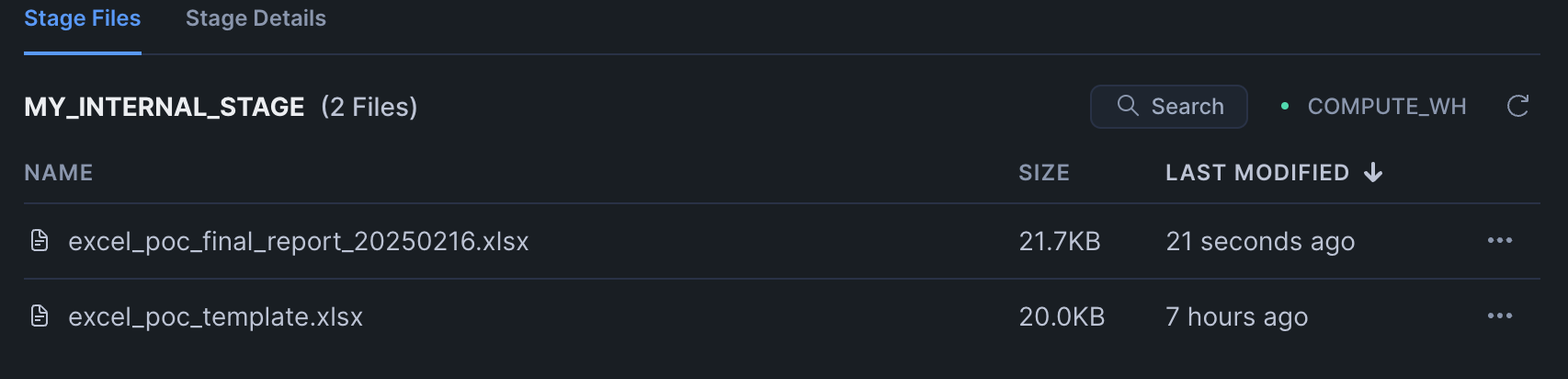
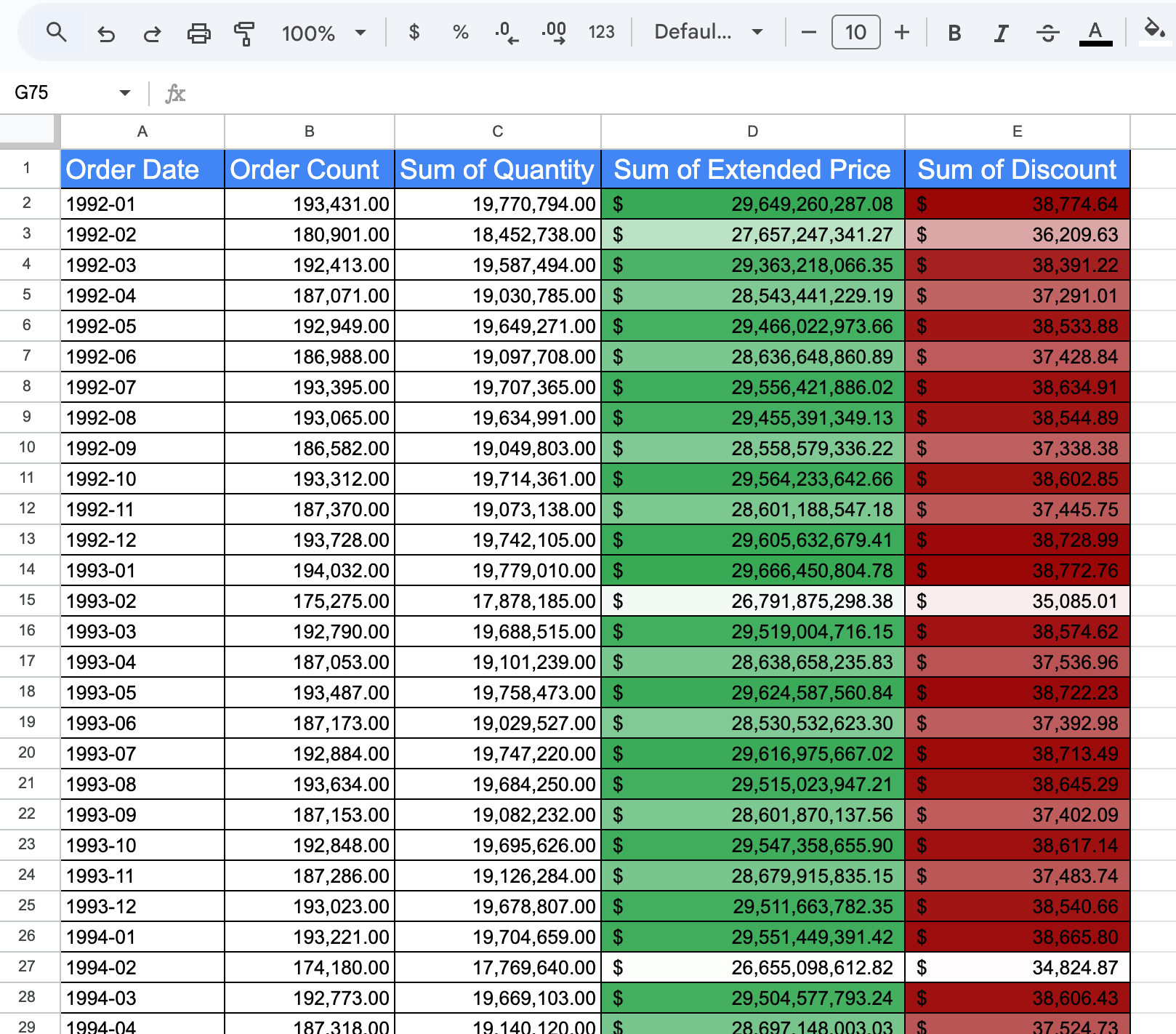
The final excel report came out quite nicely! It retained the formatting we set in the template workbook and inserted all the data without us lifting a finger!
Imagine the possibilities 🧐
This is just ONE simple example of a workflow you could automate using python. You can customize this to automate extremely complex reports where there are several dozen snowflake queries correlating to several different cells, sheets, and even workbooks. In future articles, we’ll be exploring some other neat automation ideas to build on top of this. If you have any questions or want some help automating your workflows, reach out @ Select Data Labs.